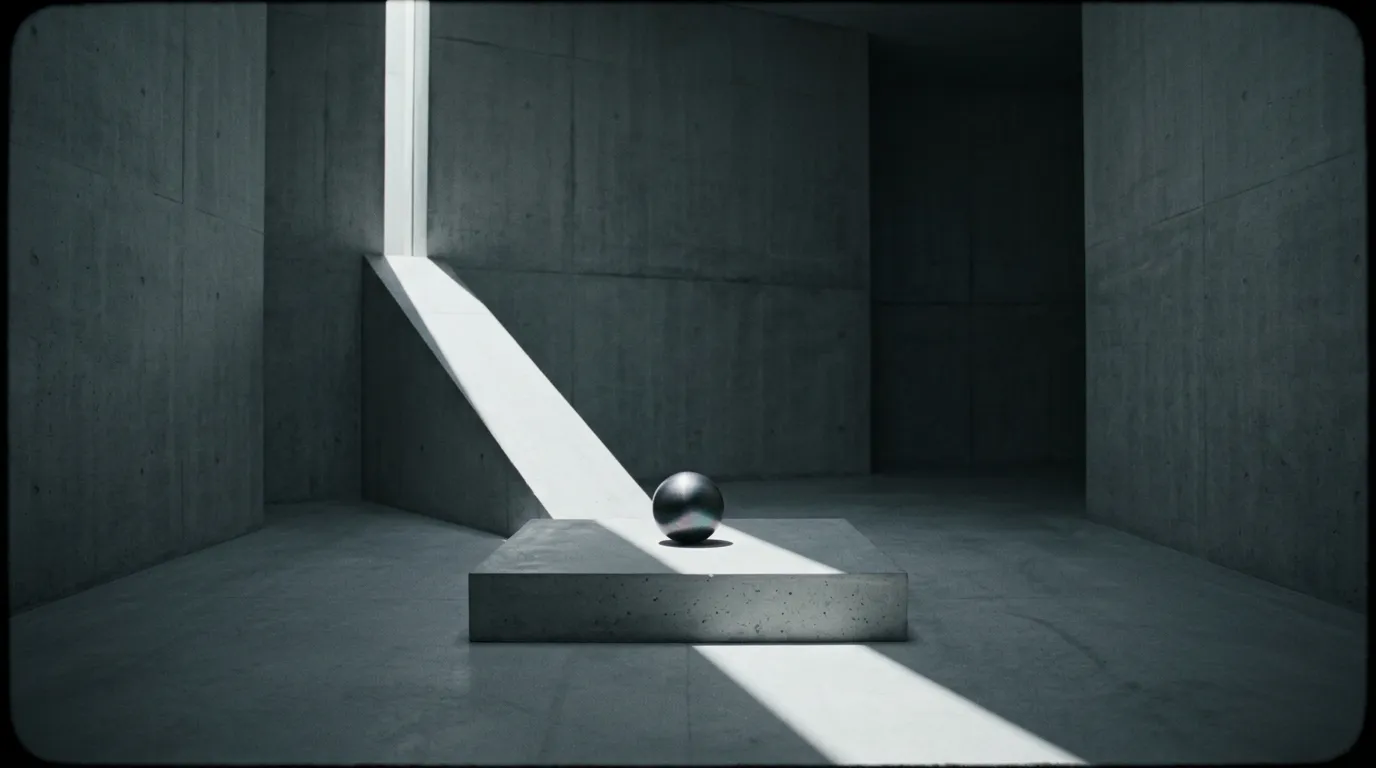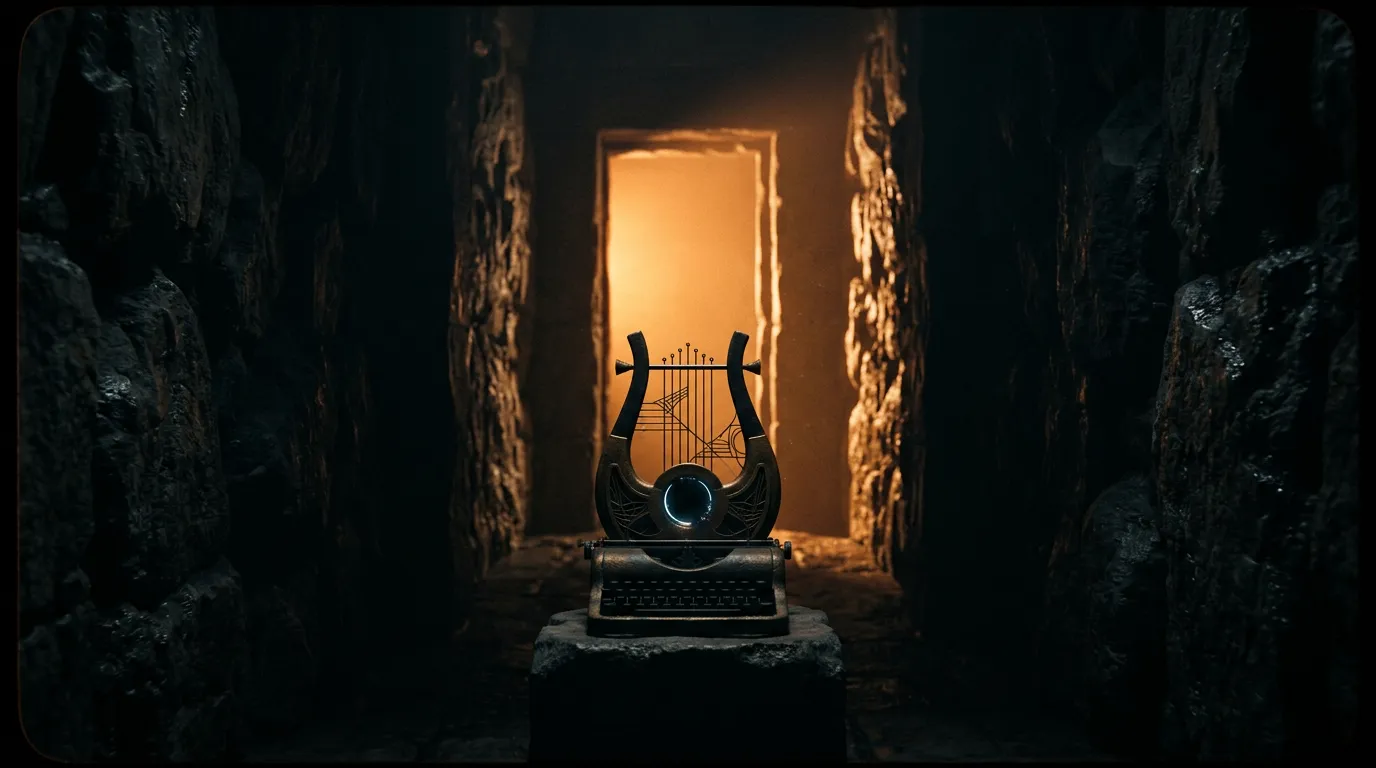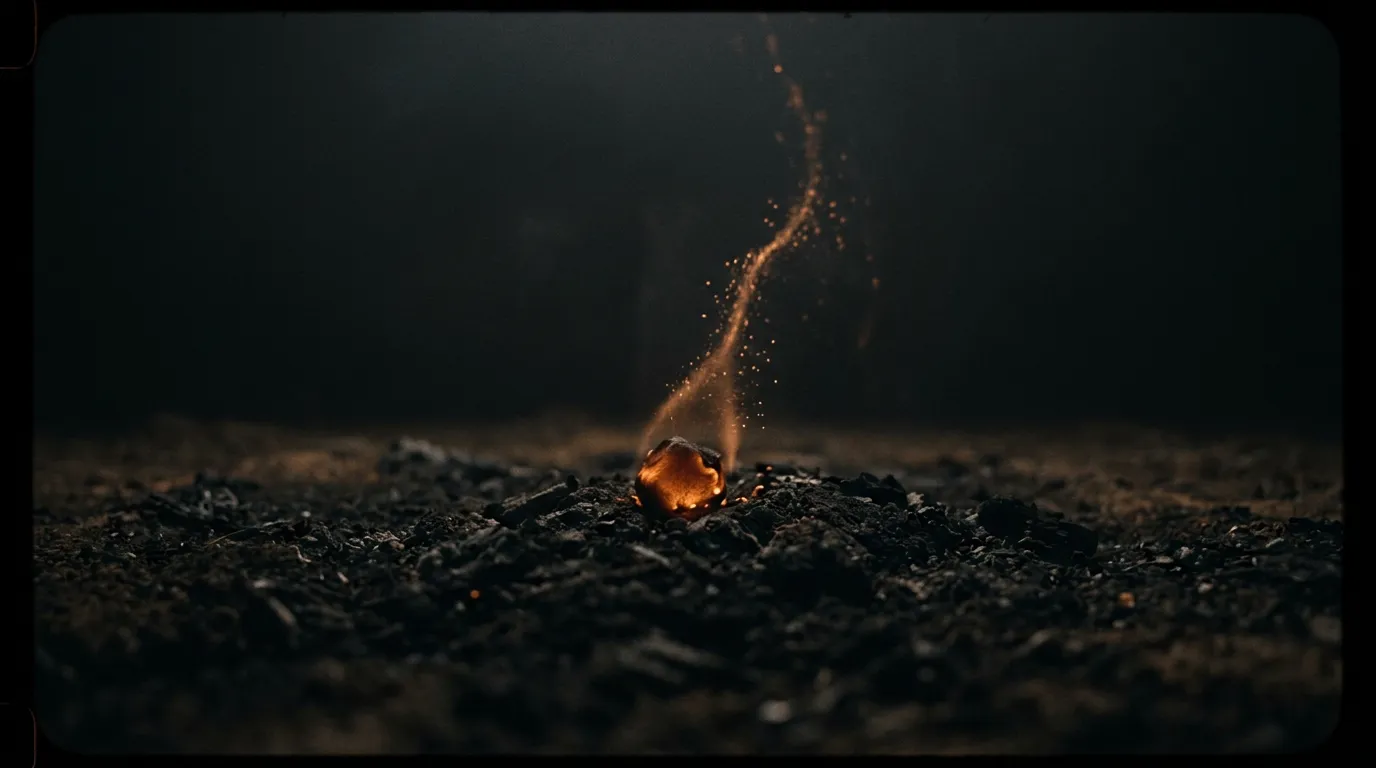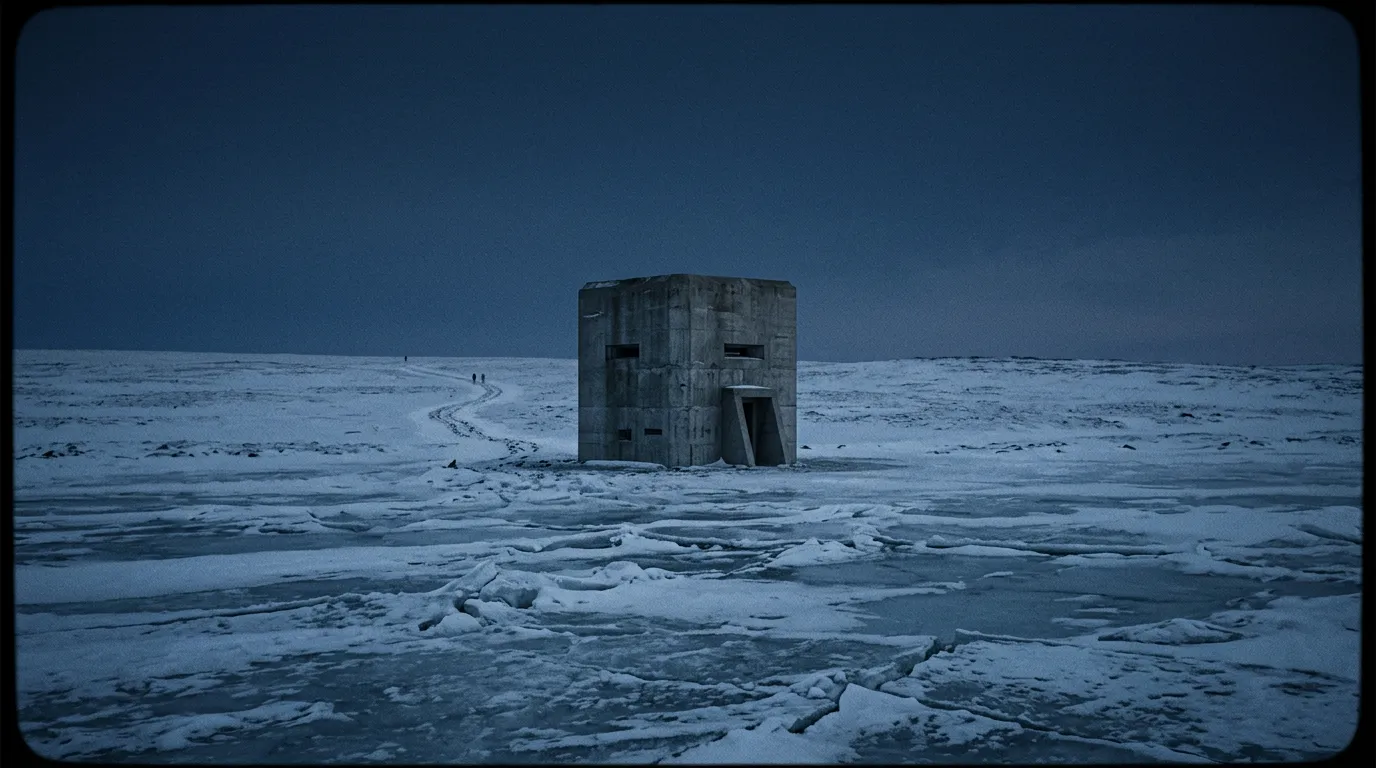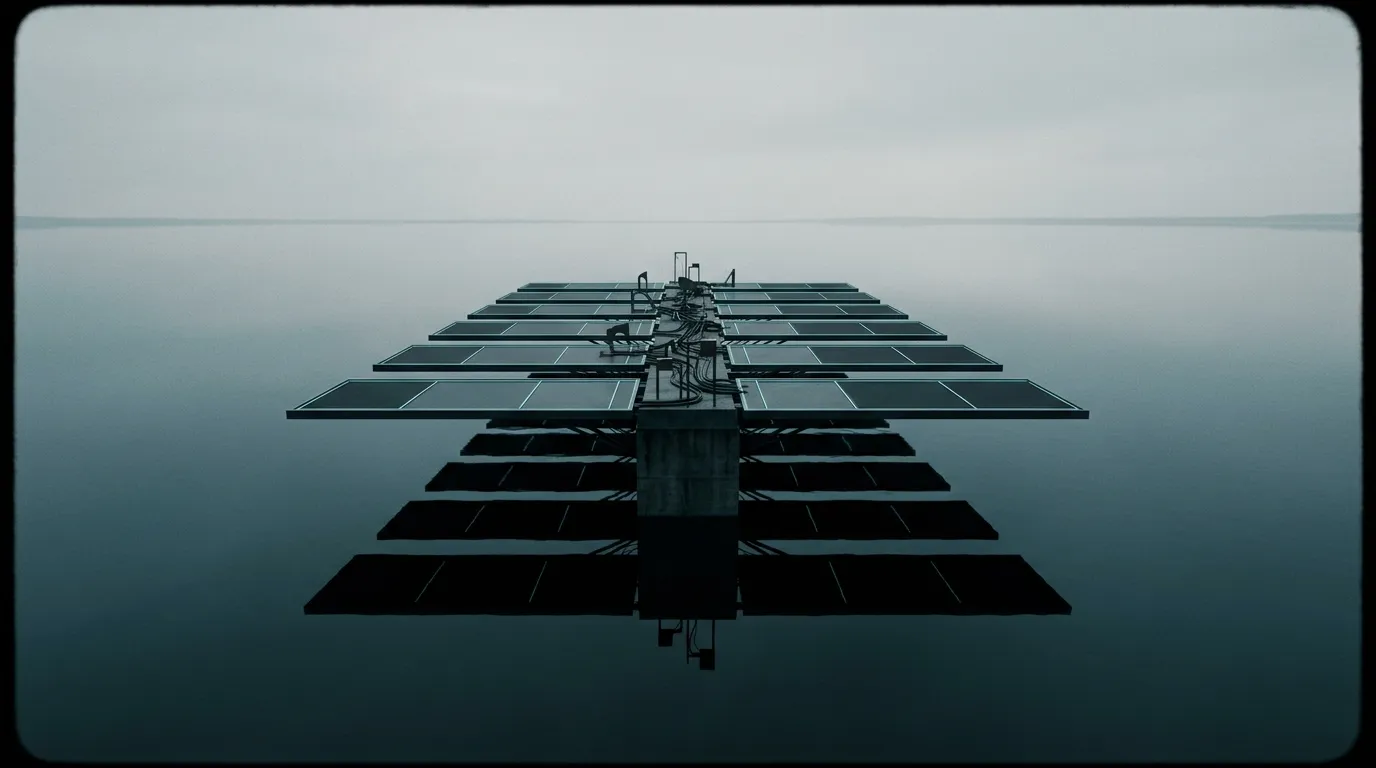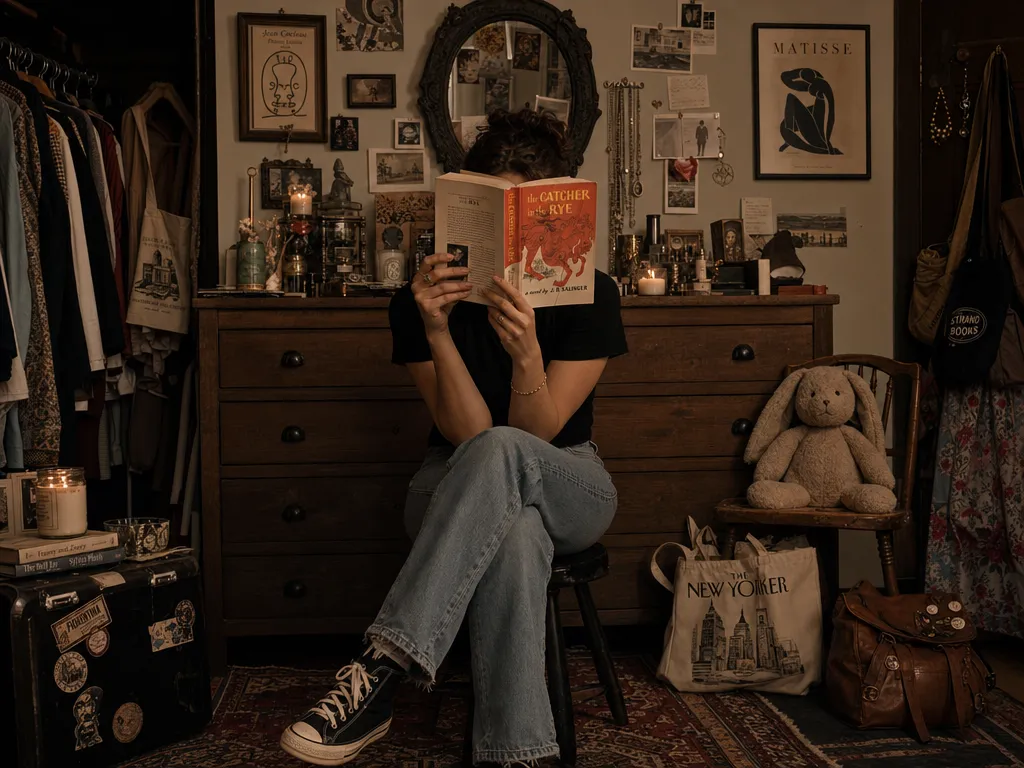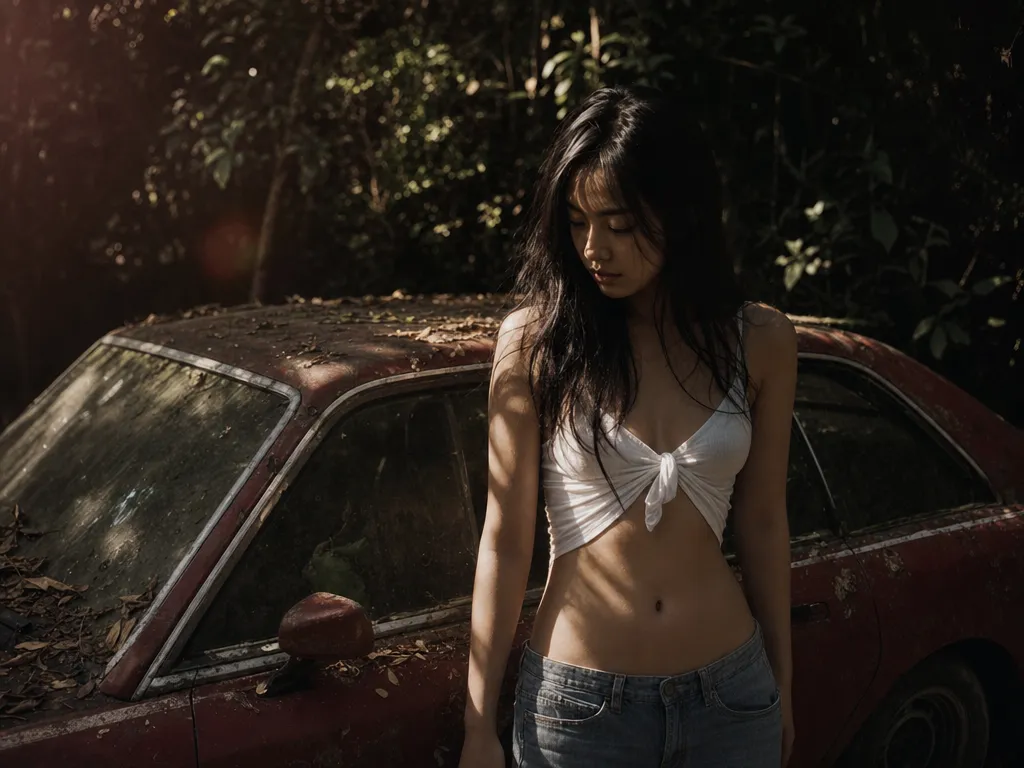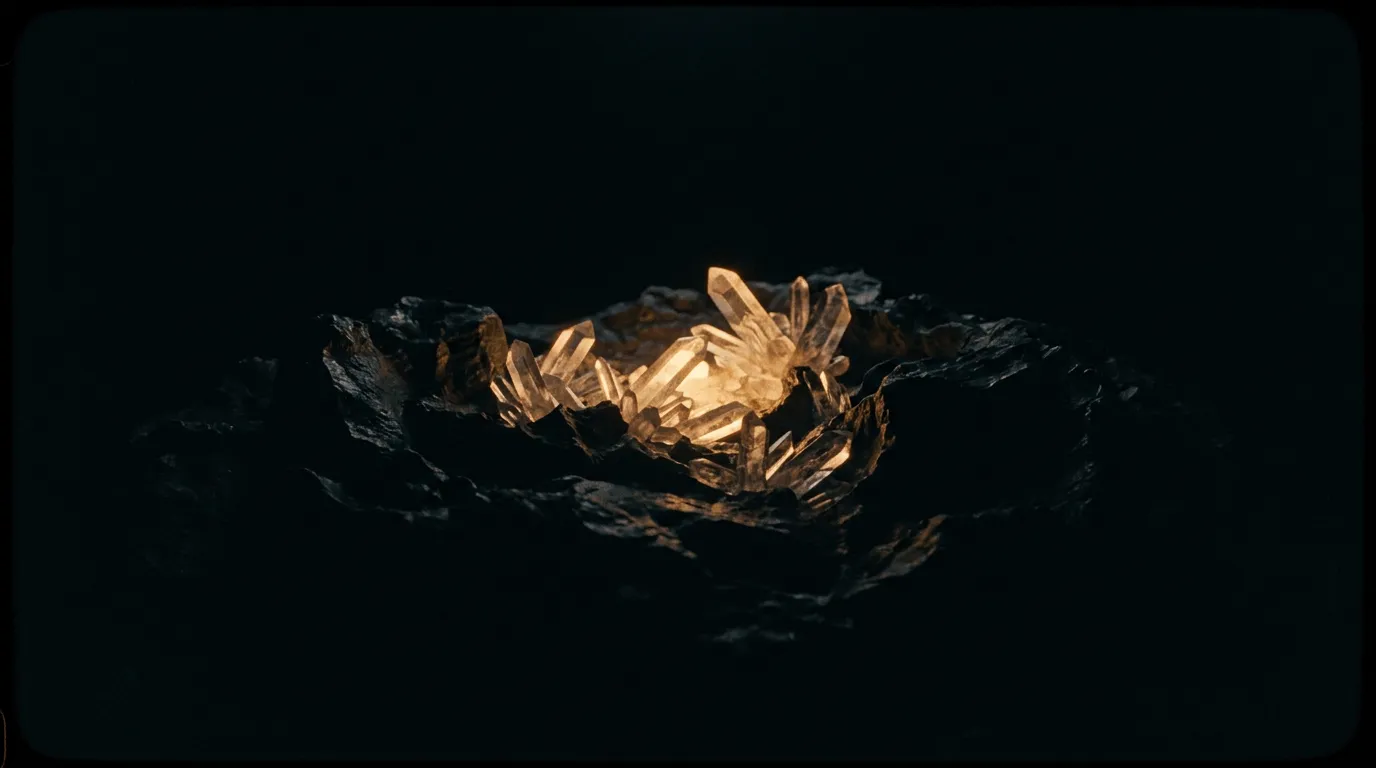
AI Wallpaper Generator: Create iPhone Lock Screen Wallpapers
Apple put AI wallpapers in iOS 27 — here's how to make sharper, fully custom ones today and set them as your iPhone Lock Screen.
At WWDC 2026, Apple gave Image Playground its biggest upgrade since launch: in iOS 27, it can generate photorealistic images and turn them straight into Lock Screen wallpapers — no third-party app, no export, no fuss. The demo of typing a prompt and watching a custom iOS 27 wallpaper land on the home screen was one of the keynote's quiet crowd-pleasers, and it instantly turned "AI wallpaper" from a niche hobby into a mainstream phone feature.
But here is the thing the keynote did not say out loud: you do not have to wait for iOS 27 to ship, and you are not limited to what Apple's on-device model will draw. A dedicated AI wallpaper generator already does everything Image Playground promises — and a good deal more — today, on the iPhone you are holding right now. This guide explains exactly what Apple announced, how an AI wallpaper generator works, and the step-by-step process for creating a custom wallpaper and setting it as your iPhone Lock Screen.
What Apple announced for wallpapers at WWDC 2026
Apple's WWDC 2026 keynote leaned heavily on Apple Intelligence, and Image Playground was one of the features that got real attention. Two changes matter for wallpapers specifically. First, Image Playground moved beyond its cartoon-and-sketch comfort zone: it can now produce photorealistic output, so a prompt like "misty redwood forest at dawn" returns something that looks shot on a camera rather than illustrated. Second, Apple wired image generation directly into the Lock Screen and wallpaper pickers, so a generated image can become your background in a couple of taps.
That is genuinely useful, and for casual users it will be the default path. It is also deliberately constrained. Apple's model runs largely on-device, which is great for privacy but caps the resolution, style range, and prompt complexity it will attempt. It steers away from anything that looks like a real public figure, it favors a narrow set of house aesthetics, and — at least at launch — it gives you little control over exact aspect ratio, re-rolling a single element, or pushing a style to an extreme. If you have ever wanted a 4K, ultra-specific, repeatable look rather than "something pleasant," you will hit those walls quickly.
This is precisely the gap a standalone ai wallpaper generator fills. Instead of one constrained on-device model, you get a choice of frontier image models, full control over resolution and aspect ratio, and the ability to iterate on a prompt until the wallpaper is exactly right. The rest of this guide shows how to do that.
What is an AI wallpaper generator?
An ai generated wallpaper is simply a background image created by a text-to-image model from a written prompt instead of a photo you took or a stock image you downloaded. An AI wallpaper generator is the tool that turns "minimalist dark-mode mountain range, deep navy and gold, lots of empty space at the top" into a finished image sized for your screen.
Under the hood, these tools run diffusion models — the same family Image Playground uses, just larger and less constrained. If you are curious about the mechanics, our explainer on how diffusion models work walks through the denoising process in plain language. The practical upshot is that the model has seen millions of images and can compose new ones on demand, which means your wallpaper is one of a kind: nobody else has the exact same background, because it was generated for your prompt in that moment.
A capable wallpaper maker does three jobs well. It interprets your prompt faithfully, so the result matches what you pictured. It outputs at a resolution and aspect ratio that fits a phone screen without cropping away the subject. And it lets you iterate cheaply — generate four variations, keep the one you like, tweak the prompt, generate again. PonPon's AI image generator handles all three, and because it sits alongside upscaling and editing tools, you can finish a wallpaper end to end in one place.
Why generate a wallpaper instead of downloading one?
Downloaded wallpapers have three problems an AI generator quietly solves. First, everyone has them — the popular backgrounds on wallpaper sites sit on millions of phones, so yours is not personal in any meaningful sense. A generated image exists only for you. Second, resolution and aspect ratio are a gamble: a gorgeous 16:9 desktop image crops badly onto a 9:19.5 phone, lopping the subject in half. When you generate, you choose the phone-shaped canvas from the start, so nothing important falls off the edge.
Third, licensing is murkier than people assume — plenty of "free" wallpaper sites repost copyrighted art, which matters the moment you screenshot your screen into a post or a story. An image you generated from your own prompt sidesteps that entirely. The deeper win, though, is fit. You can match a wallpaper to your exact icon layout, your widget colors, or a seasonal mood, and regenerate it the instant your taste changes. A background stops being something you hunt for and becomes something you design.
How to make an AI wallpaper, step by step
Making your first AI wallpaper takes about two minutes. The process is the same whether you are on iPhone, Android, or desktop, because the generation happens in the browser and you simply save the finished image to your device.
1. Open an AI image generator. Start a new generation in your tool of choice. You do not need to install anything or manage a render queue — type a prompt and go.
2. Write a wallpaper-shaped prompt. The single biggest quality lever is the prompt. Describe the subject, the mood, the color palette, and — crucially for wallpapers — where the *empty space* should be, since you need a clear zone for the clock and notifications. A strong starting prompt looks like: "Minimalist aurora over a dark mountain ridge, deep teal and violet gradient sky, lots of negative space in the top third, no text, vertical phone wallpaper." If you want a head start, our library of copy-paste prompt templates includes dozens you can adapt for backgrounds.
3. Set a vertical aspect ratio. Phone screens are tall, so choose a 9:16 or 9:19.5 aspect ratio before generating. Generating square and cropping later is the most common rookie mistake — it pushes your subject off-center and wastes resolution.
4. Generate and compare. Produce a batch of variations rather than a single image. Seeing four takes side by side makes it obvious which composition leaves room for your clock and which color story actually reads as a background rather than a busy poster.
5. Refine the prompt. If the first batch is close but not perfect, adjust one variable at a time — swap "violet" for "amber," add "soft film grain," or specify "centered subject" — and regenerate. Iterating one change at a time teaches you what each phrase does, so your tenth wallpaper takes one try instead of ten.
6. Save the final image. Download the wallpaper you like to your camera roll. On iPhone, that puts it in Photos, ready to set as a background — which is the next section.
Choosing a model: which one draws the best wallpapers?
Not every image model is good at the same thing, and wallpapers have specific demands: clean composition, controllable negative space, and color that holds up when stretched across a screen. A couple of models stand out for backgrounds. Nano Banana 2 is exceptional at clean, graphic compositions and respects negative-space instructions, which makes it a reliable pick for minimalist and abstract wallpapers, while GPT Image 2 is the strongest all-rounder for photorealistic scenes and holds complex prompts — "rain-streaked Tokyo alley at night, neon reflections, shallow depth of field" — together without losing the plot.
For painterly, stylized, and surreal looks you will want a more artistic model, and the classic Midjourney aesthetic remains a favorite for moody, cinematic backgrounds. If you are still deciding, our roundup of the best AI image generators in 2026 compares them head to head on exactly these qualities. The good news is that you do not have to commit to one: run the same wallpaper prompt through two or three models and keep whichever composition wins.
Getting 4K, pixel-perfect wallpapers
A wallpaper that looks crisp in a thumbnail can turn soft and blocky once it fills a 6.7-inch OLED panel. This is the number-one complaint people have about generated backgrounds, and it is why "ai wallpaper 4k" is such a common search. Modern phones pack enormous pixel density, so an ai phone wallpaper generated at a modest resolution gets stretched and loses detail the moment it hits the home screen.
There are two ways to solve it. The cleaner approach is to generate at the highest resolution the model offers and choose a vertical aspect ratio from the start, so you are not throwing away pixels to cropping. The second, and often better, approach is to generate your composition and then upscale a wallpaper to 4K in a single pass — multiplying its resolution while sharpening edges and recovering fine texture, so gradients stay smooth and small details like stars or grain stay clean instead of smearing. That step is the difference between a background that looks intentional and one that looks like a compressed screenshot.
One more cleanup tip: if you generated a great subject but the background behind it is distracting, isolate the subject and drop it onto a clean gradient before upscaling. That layered approach gives you the editorial, "designed" wallpapers that pure text-to-image sometimes struggles to compose in a single shot.
What resolution should an iPhone wallpaper be?
It helps to know the target before you generate. Recent iPhones cluster around a few screen resolutions: the standard models sit near 1179 × 2556 pixels, the Pro Max models push to roughly 1290 × 2796, and older devices land lower. You do not need to hit those numbers exactly — iOS scales the image — but you want your final wallpaper to *exceed* them, never fall short, because upscaling adds detail while downscaling only discards it. A practical rule is to finish at a minimum of about 1290 pixels on the short edge and around 2800 on the long edge, then let iOS scale down for smaller phones. If your generator caps out below that, generate at its maximum and upscale to clear the bar. Aspect ratio matters as much as raw pixels: a 9:19.5 canvas matches the tall modern iPhone almost perfectly, so the model composes for the shape you will actually see instead of leaving you to crop a mismatch by hand. Get the shape and the pixel ceiling right up front and the "why is my wallpaper blurry" problem mostly disappears before it starts.
How to set your AI wallpaper as an iPhone Lock Screen
Once your wallpaper is in your camera roll, setting it takes seconds. iOS 27's Image Playground integration adds a one-tap path for images it generates, but for an image you made elsewhere and saved to Photos, the manual route works on every iPhone running iOS 16 through 27.
How to change the wallpaper on your iPhone
If you are wondering how to change the wallpaper on your iPhone, you have two routes. The fastest is from Photos: open the saved image, tap the share icon, and choose Use as Wallpaper. The other route is from Settings — open Settings → Wallpaper → Add New Wallpaper → Photos, pick your generated image, position it, and tap Add. Either way, iOS will offer to set it for both the Lock Screen and Home Screen, or just one.
How to set a different wallpaper for the Lock Screen and Home Screen
A common power-user request is how to set a different wallpaper on the Lock Screen and Home Screen of an iPhone. When you add the wallpaper, after tapping Add, choose Customize Home Screen instead of "Set as Wallpaper Pair." From there you can pick a different generated image, a solid color, or a blurred version of the same art for the Home Screen. This is where having a matched *set* of AI wallpapers — generated from the same prompt with small variations — really pays off: a sharp version on the Lock Screen and a softer, darker variant behind your app icons.
Can you make a live wallpaper on iPhone?
People often ask how to make a live wallpaper on iPhone with AI. Native Live Photos as wallpaper require a Live Photo source, which a still image is not — but you can bridge the gap by animating your generated still into a short looping clip and saving it as a Live Photo with a shortcut or a conversion app. If you want true motion, the more reliable path is to generate a short animated background as a video and use it as a video wallpaper, rather than forcing a static AI image into the Live Photo format. For most people, a high-resolution static ai wallpaper looks cleaner and saves battery, so start there.
Why does my wallpaper look blurry?
If your background looks soft after setting it, two things are usually to blame. Either the source image was too low-resolution for your screen — fixed by upscaling, as covered above — or the iPhone "Perspective Zoom" / depth effect is cropping in. Toggle off the depth effect and the parallax zoom in the wallpaper editor, re-add an upscaled version, and the blur disappears.
Common mistakes that ruin AI wallpapers
A handful of avoidable errors account for most disappointing results. The biggest is ignoring negative space — a stunning image with the subject dead-center fights with your clock and notifications, so always tell the model where to leave room. The second is generating square and cropping later, which throws away resolution and decenters your composition; set a vertical ratio first. The third is over-stuffing the prompt: piling on ten adjectives ("epic hyperrealistic cinematic dramatic moody ultra-detailed…") tends to muddy the output rather than sharpen it, because the model is trying to satisfy everything at once. Pick a clear subject, one or two style cues, and a tight palette.
The fourth mistake is shipping a low-resolution image straight to your Lock Screen and blaming the generator when it looks soft — that is a missing upscaling step, not a generation failure. And the fifth: forgetting that lighting is what separates a snapshot from a wallpaper. Words like "golden hour," "rim light," "soft diffused glow," or "high-contrast noir" do more for the mood than any object in the scene. Fix these five and your hit rate jumps from one good wallpaper in ten to most of them.
AI wallpaper ideas by theme
The blank prompt box is where most people freeze, so here are directions that consistently produce great phone backgrounds. For minimalist fans, try abstract gradients, single-line mountain ranges, or a lone celestial body in deep space — these leave natural room for your clock. For nature, atmospheric conditions do the heavy lifting: fog, golden hour, bioluminescence, and aurora all read beautifully on an OLED screen. For aesthetic and moody looks, lean on a tight color palette ("muted sage and cream," "noir blue and amber") and a specific film reference. For abstract art, fluid shapes, liquid metal, and generative-pattern prompts give you something that feels designed rather than photographed.
Seasonal and themed sets are another easy win — generate a matching pack for a holiday, a favorite game, or your brand colors, and rotate them through the month. If you enjoy this kind of repeatable, templated creation, the same image workflow powers a lot of other looks; browse the AI effects gallery for styles you can adapt into backgrounds.
Build a matching set for Lock Screen, Home Screen, and StandBy
The most polished iPhone setups are not one wallpaper — they are a coordinated set, and because an AI wallpaper generator spins variations from a single prompt, you can build that set in one sitting. Generate your hero image for the Lock Screen, then regenerate the same scene with a darker exposure or a heavier blur for the Home Screen so your app icons stay legible against it. iOS 17 and later also added StandBy, the bedside landscape mode that turns a charging iPhone into a clock — generate a horizontal 16:9 version of the same art for that, and your phone looks intentional from every angle.
The trick is consistency: keep the same palette and subject across all three surfaces, and change only exposure, crop, or blur between them. Save the set as an album so you can rotate it for a season or a mood without starting from scratch. This is the kind of cohesive, deliberate look that downloaded wallpapers cannot give you, because they were never made as a family — and it is the clearest practical argument for generating your own rather than waiting for an on-device model to hand you one image at a time.
The same workflow works on Android and desktop
Nothing here is iPhone-only. The wallpaper you generate is just an image file, so the identical process works on Android — generate, save to your gallery, then long-press the home screen and pick the image — and on desktop, where a wider 16:9 or ultrawide canvas suits a monitor. If you maintain several devices, generate one prompt at multiple aspect ratios and dress your whole setup in a single coherent style. That cross-device consistency is something stock wallpaper packs rarely offer, since they are cut for one screen shape at a time.
The takeaway
Apple putting AI wallpaper generation into iOS 27 is a milestone — it tells two billion iPhone users that generating your own background is normal now. But the on-device version is the floor, not the ceiling. A dedicated AI wallpaper generator gives you frontier models, true 4K output, exact aspect ratios, and unlimited iteration, so the wallpaper on your Lock Screen is the one you actually pictured rather than the closest thing an on-device model could manage. You can build one in a couple of minutes, set it in a couple of taps, and never download a generic background again.