Image References with Sora 2
Use photos and AI-generated images to anchor Sora 2's output. Get the exact look you need.
Text prompts alone leave a lot to chance. You might describe a "cozy cabin in the mountains" and get ten different interpretations. Image references solve this — upload a photo or generated image, and Sora 2 uses it as the visual anchor for your video.
On PonPon, image references work with all video models, but Sora 2's world simulation engine makes it particularly powerful. The model doesn't just animate the image — it understands the 3D space implied by the image and simulates motion within it.
How image references work in Sora 2
When you provide an image reference, Sora 2:
- Analyzes the visual composition — subject positions, lighting direction, depth layers
- Infers 3D space — where the floor is, how far objects are from camera, spatial relationships
- Simulates motion — animates elements based on physics and your text prompt
- Maintains visual fidelity — keeps the reference image's colors, style, and key details
The result is video that looks like it started from your exact image rather than from a text description.
Step-by-step workflow on PonPon
- Go to the video generator and select Sora 2
- Click the image reference upload area (or drag and drop an image)
- Write a text prompt describing the motion you want
- Generate — Sora 2 produces video anchored to your reference image
What to upload
- Product photos: Real photos of your product for accurate product videos
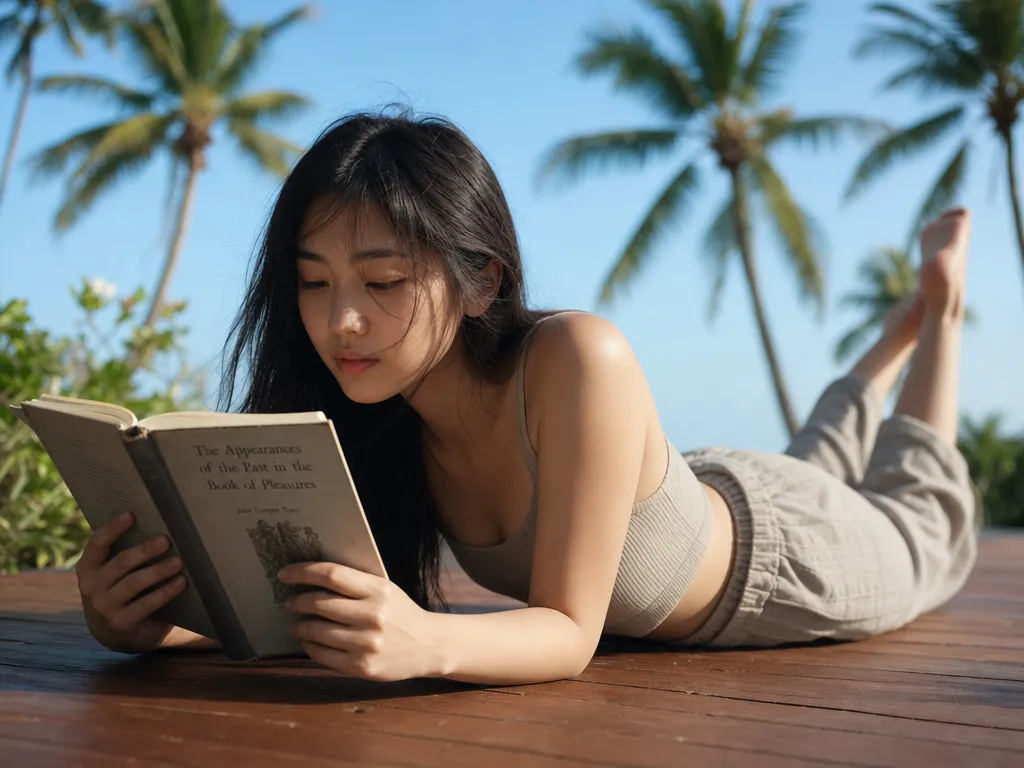
- Character portraits: A specific face/character you want to animate
- Scene compositions: A still frame showing the exact composition you want to bring to life
- AI-generated images: Create with Nano Banana Pro first, then animate with Sora 2
Image quality matters
Higher resolution reference images produce better results. Minimum recommended: 1024x1024. Sora 2 extracts more detail from sharp, well-lit images. Avoid heavily compressed JPEGs or blurry photos.
Combining image references with text prompts
The text prompt tells Sora 2 what to do with the image. This is where the real power is.
Motion-focused prompts
Your image provides the "what." The text provides the "how it moves."
Example: Upload a portrait photo. Prompt: "She turns her head slowly to the left, smiling. Hair moves naturally in a slight breeze."
The model keeps her appearance from the photo but adds the motion you described.
Environment animation
Upload a landscape or interior photo and describe what changes:
Example: Upload a photo of a city skyline. Prompt: "Time-lapse: clouds move across the sky, lights in buildings flicker on as the sun sets. The scene transitions from golden hour to blue hour."
Extending beyond the frame
Sora 2 can infer what's outside the reference image's frame:
Example: Upload a close-up of a flower. Prompt: "Camera pulls back to reveal a vast field of wildflowers stretching to the horizon. Golden hour lighting."
Adherence levels
How closely the video matches the reference image depends on your prompt:
High adherence
Keep the text prompt focused on motion, not on visual description. Let the image do the visual work.
- "The subject walks forward" — high adherence to the reference
- Don't re-describe what's in the image; the model will try to reconcile your description with the reference and may drift
Medium adherence
Add environmental changes while keeping the subject consistent:
- "Rain begins falling on the scene. Puddles form on the ground. The lighting shifts to overcast."
Low adherence (creative departure)
Add a strong style modifier that overrides the reference's visual style:
- "Transform this scene into a Studio Ghibli animation. Watercolor textures, warm palette."
Best source images for different goals
Product videos
Use a product photo on a neutral background. The simpler the background, the more predictable Sora 2's animation will be. White or grey seamless backgrounds work best.
Character animation
Front-facing portraits with neutral expressions work best. The model can add expression and motion from a neutral starting point more reliably than from an already-expressive pose.
Scene animation
Wide shots with clear depth layers (foreground, midground, background) give Sora 2 the most to work with. The model animates depth layers independently — foreground elements can move at different speeds than the background.
Nano Banana Pro to Sora 2 pipeline
The most powerful workflow on PonPon:
- Generate an image with Nano Banana Pro that shows exactly the scene you want
- Use that image as a reference in Sora 2
- Prompt Sora 2 for motion — the text describes only how the image comes alive
This gives you full control over both the visual design (via Nano Banana Pro) and the motion (via Sora 2). You're not hoping Sora 2 interprets your text description correctly — you're showing it exactly what you want and telling it how to animate.
Common mistakes
- Re-describing the image in text: If your reference shows a red car, don't write "a red car" in the prompt. Just describe the motion. Re-describing creates conflicts.
- Low-resolution references: Blurry or low-res images produce blurry video. Use the highest quality source available.
- Complex multi-subject images: Sora 2 handles single-subject references best. Images with multiple people or many objects may have unpredictable animation priority.
- Expecting exact frame 1: The first frame of the video will resemble your reference but won't be pixel-identical. There's always some reinterpretation.