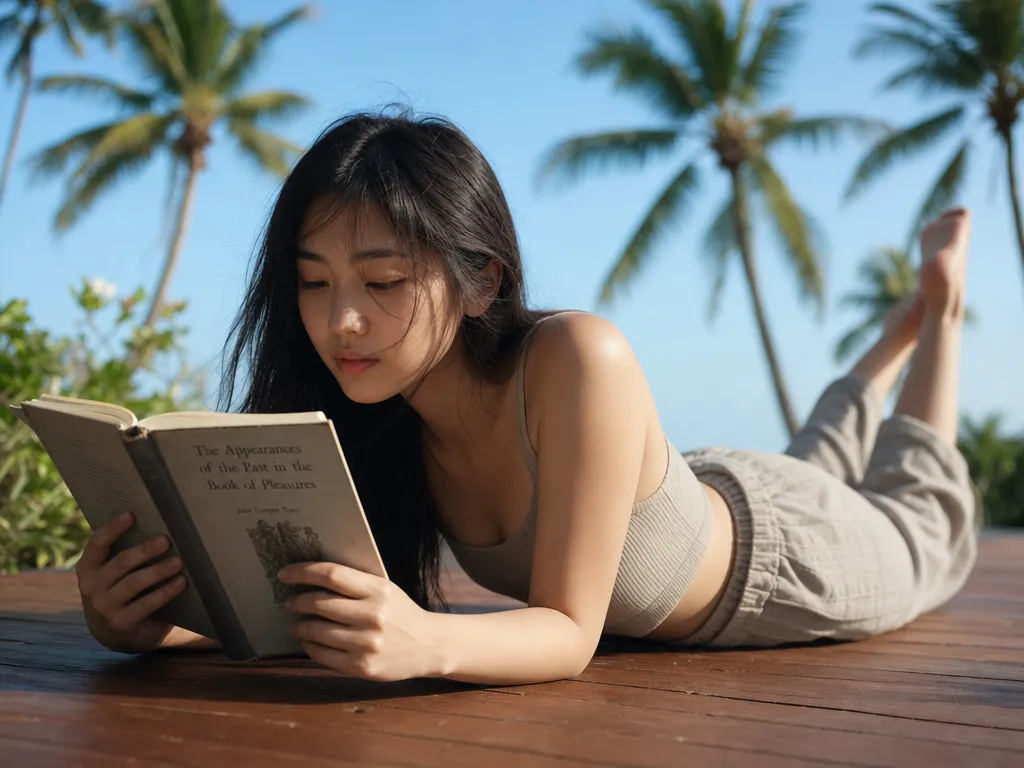
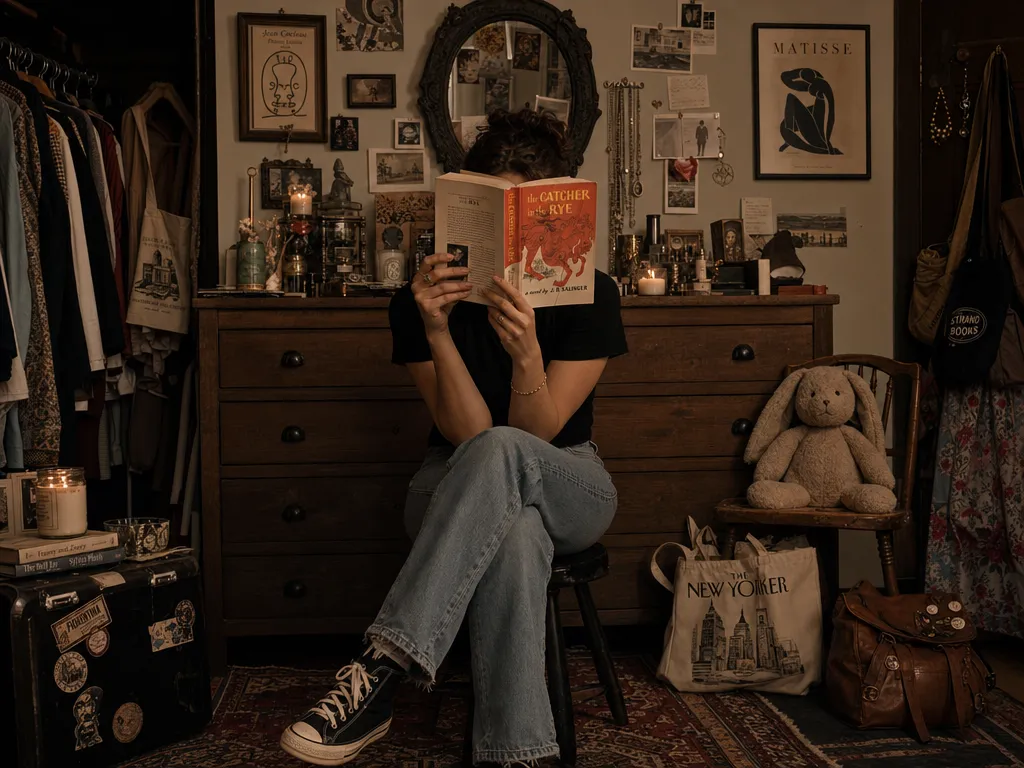
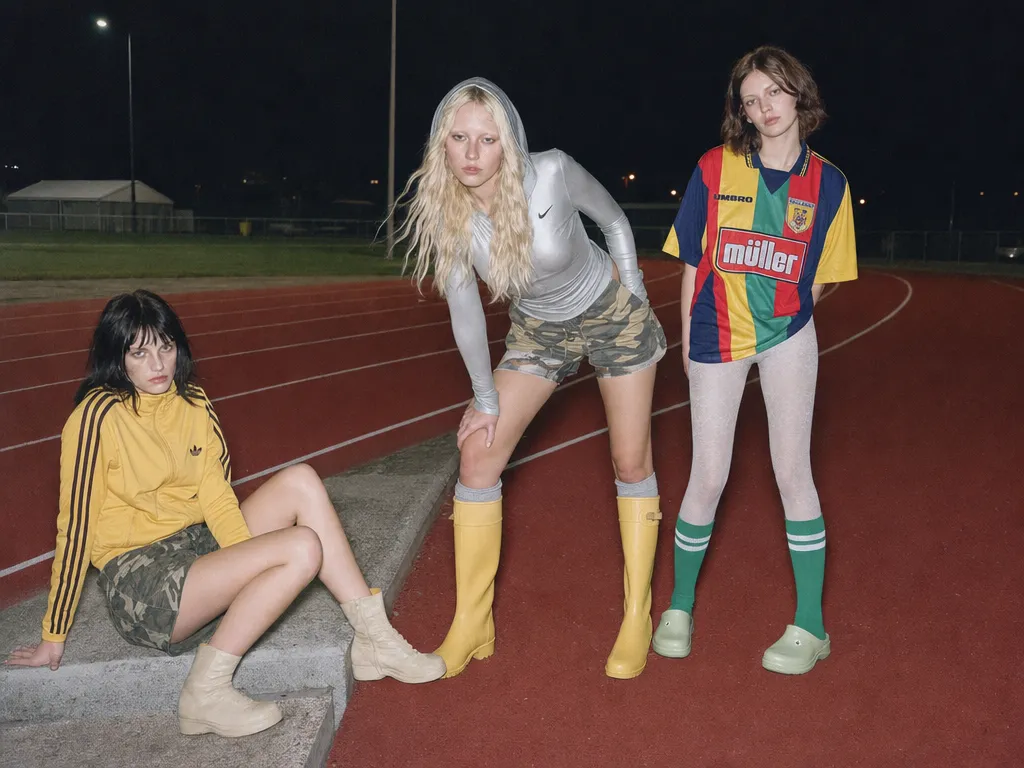
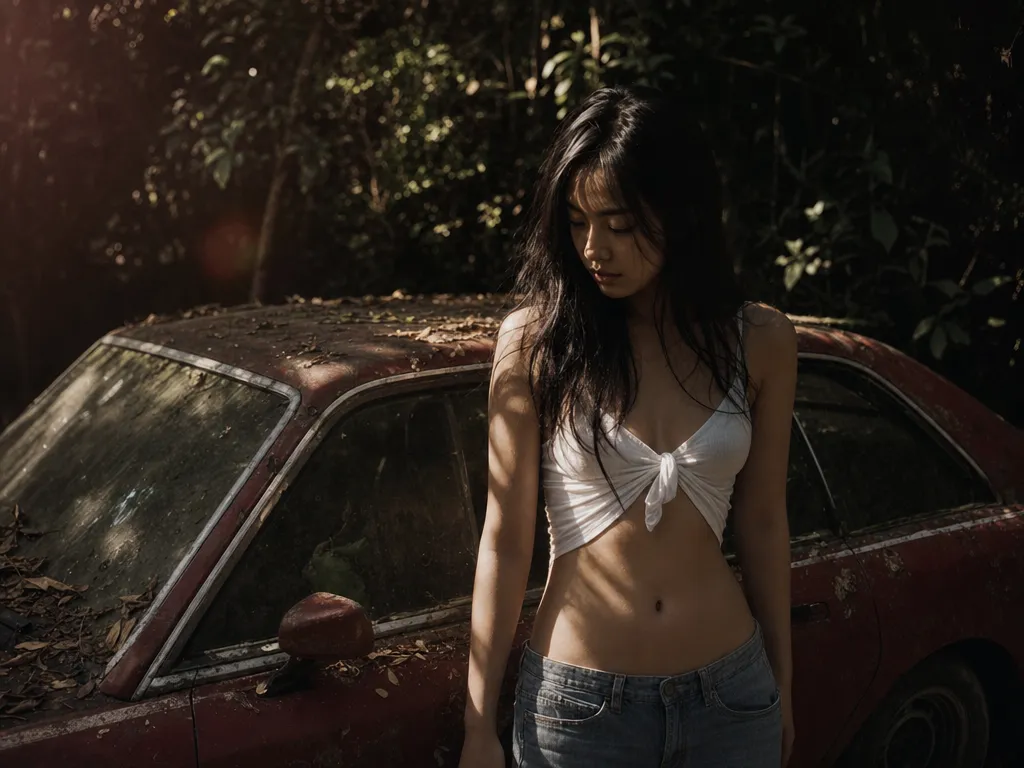
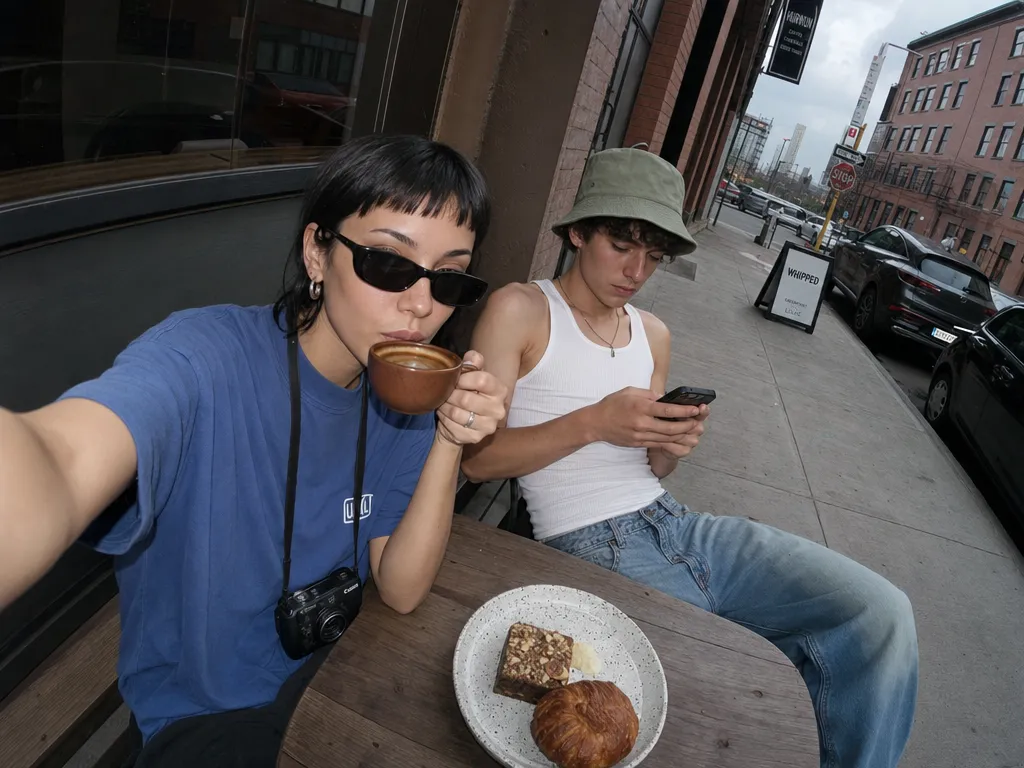
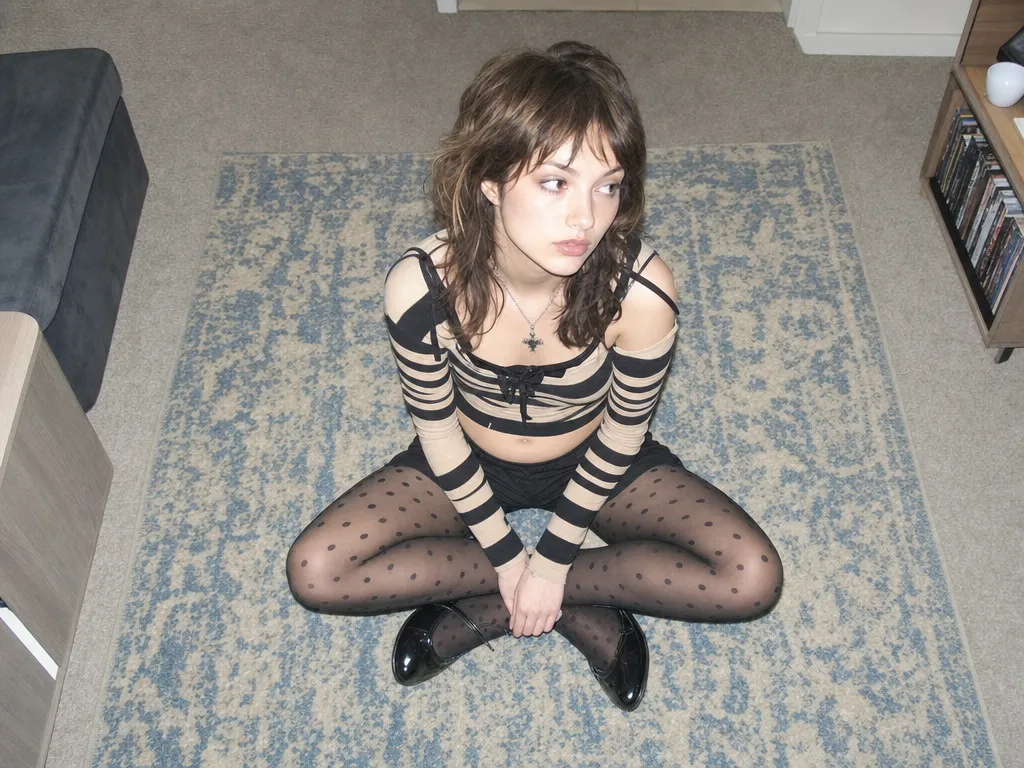
Upload any photo and describe what you want to change. AI executes precise edits — swap backgrounds, transfer styles, modify outfits — while preserving your identity and composition.
Describe your edit in plain English — 'change the red car to blue', 'replace the background with a sunset beach'. Nano Banana Pro modifies the exact area you specify while the rest of the image stays pixel-perfect.
Style transfer — one prompt, new aesthetic
Convert photos to watercolor, anime, vintage film, oil painting, or any visual style. The AI preserves your original composition and content while transforming the entire look. Try GPT Image 2 for the most faithful style translations.
Character consistency — your face, any scene
Change hairstyles, outfits, backgrounds, and lighting while your facial features stay identical. Upload a reference photo once and generate dozens of variations — real identity preservation, not approximation.
Multiple models to compare
Nano Banana Pro excels at precision edits and character consistency. GPT Image 2 leads in text rendering and transparent backgrounds. Use Canvas to run both on the same image and compare results side by side.
Batch variations from one photo
Generate multiple variations from a single source image — different backgrounds, styles, outfits, or color palettes. One upload, unlimited creative directions. Use the AI Agent to automate batch generation with smart model selection.
Who it's for
Use cases
Product photo variations
Upload one product shot and generate dozens of background, lighting, and lifestyle variations. Replace studio backdrops, add seasonal themes, or create platform-specific crops — all from a single hero image.
Social content from existing photos
Transform personal photos into stylized social content. Apply trending aesthetics, change outfits for fashion posts, or create themed variations for campaigns — without reshooting.
Brand asset adaptation
Take one brand visual and adapt it across channels — different color schemes for different platforms, localized backgrounds for regional campaigns, seasonal variations of the same hero image.
Virtual try-on and styling
Upload a portrait and try different hairstyles, makeup looks, and outfits. Explore style directions without committing — great for personal styling, content planning, and e-commerce visualization.
Art and illustration exploration
Feed in a sketch, photo, or rough composition and iterate on visual styles. Go from pencil sketch to oil painting to anime to photorealism — all while preserving the original layout and subject.
Community
Loved by creators worldwide
Join thousands of creators, agencies, and brands who use PonPon every day.
Product variations in minutes, not days
We uploaded 30 product photos and generated 5 background variations each in under an hour. Our photographer would need a week to reshoot all of that. The quality is indistinguishable from real studio shots.
EV
Elena Vasquez
E-commerce Creative Director
Style transfer that actually preserves composition
I've tried every style transfer tool out there. PonPon is the first one where my original framing and subject placement stay exactly where I put them. The style changes, everything else stays locked.
JP
James Park
Digital Artist & Illustrator
Identity preservation is genuinely accurate
I generate content variations for influencer clients. Their faces need to be pixel-perfect across all variations. Nano Banana Pro nails it — the client can't tell which photo is real and which is AI-edited.
SC
Sophia Chen
Social Media Agency Owner
Batch generation changed our campaign workflow
One hero image, 20 variations for different markets, different seasons, different platforms. What used to take our design team a full sprint now takes an afternoon. The ROI is absurd.
MT
Marcus Thompson
Global Marketing Manager
Sketch to finished illustration in one step
I upload rough pencil sketches and transform them into polished illustrations. I can explore 10 visual styles in the time it used to take me to render one. My creative output tripled.
YT
Yuki Tanaka
Concept Artist, Game Studio
The comparison workflow is addictive
Running the same edit through Nano Banana Pro and GPT Image 2 side by side on Canvas — each model has a sweet spot. Pro for faces and edits, GPT for text and transparency. I never have to guess which is better.
DW
David Wright
Freelance Motion Designer
FAQ
Questions & answers
What is image-to-image AI?
Image-to-image AI takes an existing photo and transforms it based on your text instructions — background swaps, style transfers, outfit changes, object edits, and more. Unlike text-to-image (which creates from scratch), image-to-image preserves your original composition and subject.
Which AI models are available for image-to-image?
Nano Banana Pro excels at precision editing and character consistency. GPT Image 2 leads in text rendering and transparent backgrounds. Both are available on PonPon — use Canvas to compare results side by side.
Is image-to-image AI free?
Yes. Free daily credits cover image-to-image across all models. No credit card required. Paid plans unlock higher volume and priority rendering.
Will the AI change my face or identity?
No. Image-to-image models on PonPon preserve your facial features and identity. You control what changes — background, outfit, style, lighting — and the AI leaves everything else untouched.
What's the difference between image-to-image and regular photo editing?
Traditional editing requires manual masking, layers, and tool-by-tool adjustments. AI image-to-image lets you describe the change in plain language — 'make the background a beach at sunset' — and the AI handles all the technical work automatically.
Can I upload any image format?
PonPon accepts JPG, PNG, and WebP. For best results, use images with at least 720p resolution. Large images are resized automatically to fit model requirements.
How is this different from text-to-image generation?
Text-to-image creates images from scratch based on a text prompt. Image-to-image starts with your existing photo and modifies it — preserving composition, subject, and identity while changing the elements you specify. Use text-to-image when you need something new; use image-to-image when you want to transform something you already have.