Image generation basics
Write a good image prompt, choose between models like GPT Image 2, Nano Banana Pro and Seedream 5.0, use reference images, and edit results with the annotate tools.
Open the image generator, describe a picture, pick a model, and generate. Results land in a gallery you can reuse, edit, or carry into other tools. This page covers the habits that make the difference.
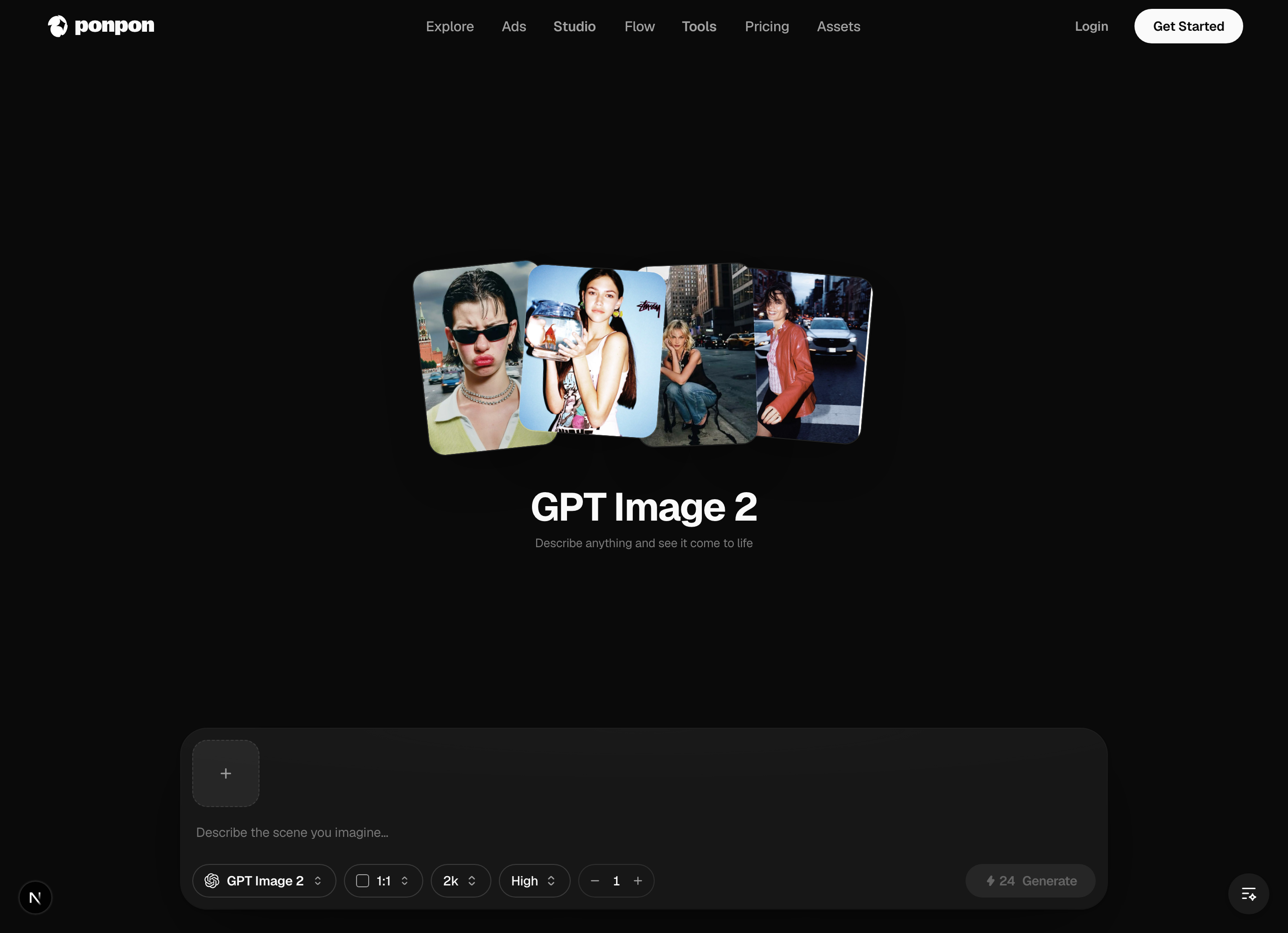
Everything happens from that bottom bar: type your prompt, set the options to its right, and press Generate. The cost is shown before you commit.
Anatomy of a good image prompt
Cover four things, roughly in this order:
- Subject — what's in frame ("a ceramic coffee cup on a linen napkin").
- Style — photo, illustration, 3D render, watercolor, product shot.
- Composition — close-up, wide shot, top-down, centered, rule of thirds.
- Light & mood — soft morning light, neon night, studio softbox.
Product photo of a matte-black wireless earbud case on a wet stone surface, top-down, soft diffused studio light, shallow depth of field, minimalist.
Choosing a model
The model picker is a row of chips. PonPon defaults to GPT Image 2; switch based on the job:
- GPT Image 2 — the default. Generation and editing in one model, excellent at legible in-image text and accepting many reference images.
- Nano Banana Pro — surgical localized edits with no masking, strong character/product consistency, and up to 4K renders. Nano Banana 2 is its faster sibling.
- Seedream 5.0 — editorial photorealism and strong visual reasoning (hands, gaze, depth). Seedream 4.5 is the faster, cheaper tier.
- Midjourney V8 — the signature cinematic, painterly look (renders four options per generation).
Aspect ratio, resolution, and batches
- Aspect ratio — 1:1 for avatars and feed, 16:9 for banners, 9:16 for stories, plus an "auto" option that matches your reference image. PonPon offers a wide set (21:9 down to 2:3).
- Resolution — depends on the model (GPT Image 2 exposes 1K / 2K / 4K).
- Count — generate a batch and pick the best.
Working from reference images
Attach up to 10 reference images (upload, paste, drag, or "use as reference" from the gallery) to guide composition, style, or a specific subject.
@ to mention a specific attached image — e.g. *"put @Image1 on the table in @Image2"*. It's the cleanest way to combine several references into one shot.Editing instead of regenerating
You don't have to start over to make a change:
- Annotate-and-edit — click any result to open a full-screen editor with Select, Brush, Rectangle, Text, and Eraser tools plus a color picker. Mark up the area you want changed, type an edit instruction, and PonPon regenerates just that.
- Swap a background with background removal, fix or replace words with text edit, change the camera angle with multi-angle, or make it print-sharp with the image upscaler.
Try PonPon Muse
For fashion and portrait shots, switch the model picker to Muse: upload a character photo, pick a style (Y2K, studio, editorial film looks, and more), and it runs a guided portrait pipeline.
Iterate deliberately
- Change one variable at a time — model, then light, then composition.
- Add negative space in the prompt if you'll place text on top later.
- When a batch is close but not right, switch to editing rather than re-rolling the whole prompt.
Ready for motion? Carry the same instincts into Text-to-video basics.
Related articles
- Prompting for videoA practical method for AI video prompts on PonPon: shot structure, the camera presets the models understand, pacing, model-specific tips, and fixing common failures.
- Text-to-video basicsHow video generation works on PonPon: text-to-video vs image-to-video, choosing models like Veo 3.1, Sora 2 and Kling 3.0, and the Edit and Motion Control tabs.
- What is PonPonPonPon is an AI media studio — generate video, images, and audio, edit them, and run one-click effects, with 30+ models in one browser tab.