Image-to-video guide
Animate a still you already have: pick a strong source image, use Start and End frames, write motion (not a scene), and choose the best model for image-to-video on PonPon.
Image-to-video starts from a picture you already have and sets it in motion. Because the first frame is locked to your image, you get maximum control over the look — you're only asking the model to handle the movement, not invent the whole scene.
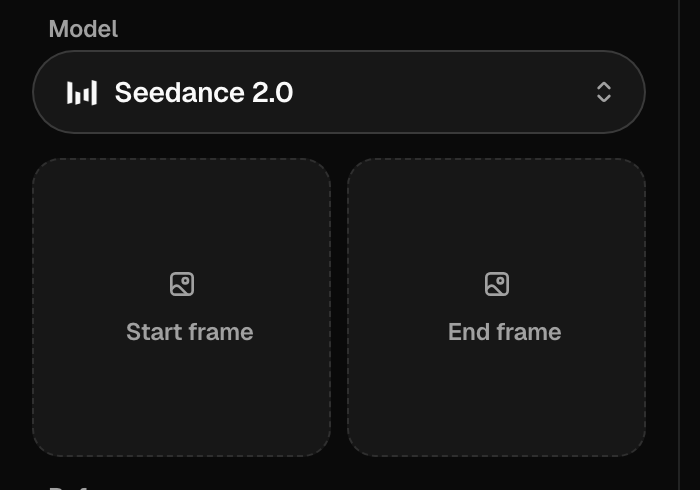
Two ways in
- Image-to-video tool — the most direct path: upload a photo, add a prompt, generate.
- Video generator — drop your image into the Start Frame slot on the Create tab. There's no mode switch; the moment a Start Frame is present, PonPon animates from it.
Either way, the source image becomes frame one and the model takes it from there.
Pick a strong source image
The clip can only be as good as the still it starts from:
- Sharp and well-lit, with the subject clearly readable.
- Composed for motion — leave room in the direction things will move.
- For people, a clean, front-lit face animates far more reliably than a busy or shadowed one.
Start frame, or start-to-end morph
- Start Frame only — the model animates outward from your image. Best when you want natural motion from a fixed opening.
- Start + End Frame — add a second image and the clip transitions from one to the other. Great for transformations, reveals, and before/after beats.
Write motion, not a scene
Your image already defines the subject, style, and setting — so the prompt's job is the movement. Two examples:
Start Frame (a portrait): *She turns her head toward the camera and smiles; gentle hair movement; slow push-in. Cinematic, calm.*
Start → End morph (closed bud → open flower): *The bud slowly unfurls into full bloom; soft time-lapse feel; static camera.*
Don't re-describe what's already in the frame. Name the action, the camera move, and the pace — that's what the model still has to decide.
Best models for image-to-video
- Kling 3.0 — precise image-to-video motion plus lip-sync, ideal when a person should move or speak naturally.
- Sora 2 — the most convincing physics when objects, cloth, or crowds need to move believably.
- Seedance 2.0 — fast, vertical-first social clips from a single photo.
- Veo 3.1 — the most controllable camera language with native audio.
- HappyHorse — the most versatile if you also want to attach reference characters.
Common fixes
| Problem | Try this |
|---|---|
| Face or hands warp | Start from a cleaner, sharper photo; ask for slower motion |
| Nothing much moves | Name an explicit action and camera move in the prompt |
| The look drifts from your image | Shorten the clip; avoid prompting style the image already has |
| Transition feels abrupt | For a morph, pick Start/End frames that share framing and lighting |
| "Photos of real people aren't supported" | A model's privacy filter — use Kling 3.0 or Veo 3.1 for real faces |
For the wider picture — all four input modes and the Edit and Motion Control tabs — read Text-to-video basics. For prompt craft, see Prompting for video.
Related articles
- Text-to-video basicsHow video generation works on PonPon: text-to-video vs image-to-video, choosing models like Veo 3.1, Sora 2 and Kling 3.0, and the Edit and Motion Control tabs.
- Prompting for videoA practical method for AI video prompts on PonPon: shot structure, the camera presets the models understand, pacing, model-specific tips, and fixing common failures.
- Image generation basicsWrite a good image prompt, choose between models like GPT Image 2, Nano Banana Pro and Seedream 5.0, use reference images, and edit results with the annotate tools.