Text-to-video basics
How video generation works on PonPon: text-to-video vs image-to-video, choosing models like Veo 3.1, Sora 2 and Kling 3.0, and the Edit and Motion Control tabs.
The video generator turns a prompt — or an image — into a moving clip. It has three tabs: Create Video, Edit Video, and Motion Control. Most work starts on Create.
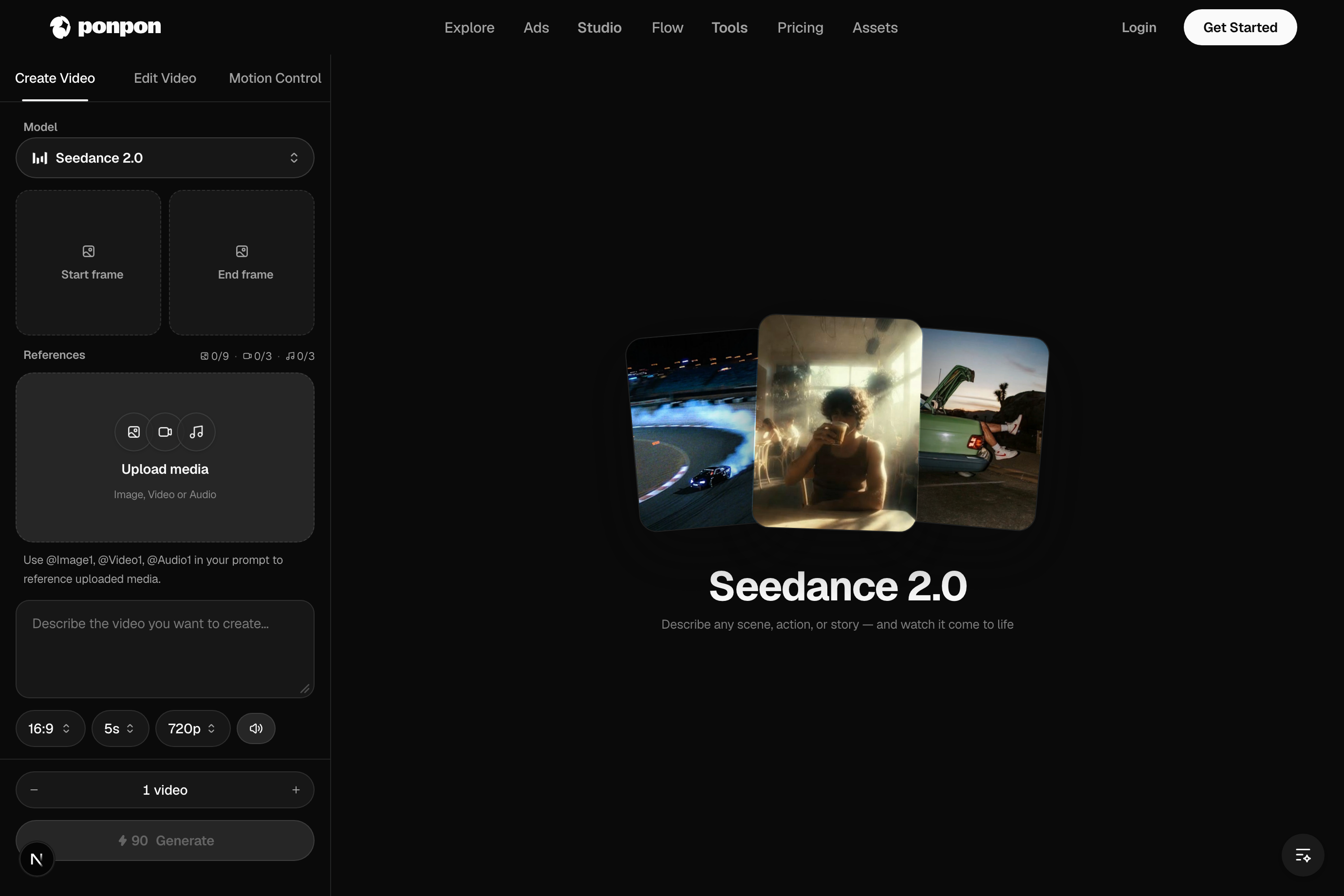
One generator, four input modes
There's no mode switch — PonPon infers what you want from what you give it:
- Text-to-video — a prompt and nothing else. Maximum freedom; the model invents every frame.
- Image-to-video — upload a Start Frame and the model animates it as the first frame. Maximum control over the look.
- Start → end morph — add an End Frame too, and the clip transitions from one image to the other.
- Reference-to-video — attach reference images/videos on a capable model to carry a subject or style into the shot.
Note
You never pick a mode — the Start frame and End frame slots and any reference attachments decide it for you. If you already have a character or product image you love, start from a frame; if you're exploring, start from text.
Write motion, not just a scene
A still-image prompt describes a moment. A video prompt describes a moment that changes — subject, action, camera, and pacing:
A surfer paddles out and stands up on a wave at sunrise, camera tracking alongside at water level, spray catching the light. Smooth, cinematic motion.
Choosing a model
The picker is a row of chips. Each has a clear strength:
- Veo 3.1 — the most controllable camera language plus native audio. A great all-rounder. Veo 3.1 Fast drafts the same look quicker.
- Sora 2 — best-in-class physics and texture realism, with synced audio.
- Kling 3.0 — precise motion, lip-sync, and multi-shot storytelling (several camera cuts in one generation).
- Seedance 2.0 — fast and expressive, vertical-first, with audio-visual beat sync. Seedance 2.0 Fast is faster still.
- HappyHorse — the most versatile: text, image, reference, and editing pipelines, with many reference characters and native audio.
Aspect ratio, duration, resolution, audio
- Aspect ratio — 16:9 for YouTube, 9:16 for TikTok / Reels / Shorts, 1:1 for feed (hidden when you start from an image).
- Duration & resolution — the options depend on the model.
- Audio — for audio-capable models a toggle generates sound with the picture; some models (like HappyHorse) always include it.
Tip
Keep early renders short and at the default resolution. Motion reads the same at 720p as at 1080p, so you can judge whether a shot works for a fraction of the credits before committing to the full-length, high-res version.
Beyond Create: Edit and Motion Control
- Edit Video — feed in an existing clip and a prompt to restyle or modify it (video-to-video), optionally keeping the original audio.
- Motion Control — drive a still character image with the motion from a reference video, choosing whether the character follows the image or the video.
After the render
- Sequence shots and re-run them in Flow, or build a multi-scene piece in Studio.
- Add a voiceover, music, or sound effects in the audio studio.
For the deeper method — camera language, shot structure, and common fixes — read Prompting for video.
Related articles
- Your first AI videoStep by step: sign in, write a prompt, pick a model, set aspect ratio, duration and resolution, generate, and download your first AI video on PonPon.
- Prompting for videoA practical method for AI video prompts on PonPon: shot structure, the camera presets the models understand, pacing, model-specific tips, and fixing common failures.
- Image generation basicsWrite a good image prompt, choose between models like GPT Image 2, Nano Banana Pro and Seedream 5.0, use reference images, and edit results with the annotate tools.